How to Save Restaurants From YouTube Food Videos
To save restaurants from a YouTube video, get the place names from the description, the pinned comment or the chapters, then put each one on a map: by hand in a Google Maps list, or by pasting the link into Crumble's Find spots, which lists the food and drink places the video names so you can save them in one go. For Shorts and videos of 3 minutes or less, Crumble also picks up what is said and shown on screen; for longer vlogs it reads the title and description only.
YouTube is a different problem from TikTok. A single "24 hours in Tokyo" or "where locals eat in Mexico City" vlog can name 5 to 15 places in twenty minutes. You watch it on the sofa, tap Save, and three months later you are standing in Shibuya with a Watch later list full of thumbnails and no idea which ramen shop came at minute 14. This guide covers where the names hide in a YouTube video, the manual method, the automatic one, and what each can and cannot read.
Why a playlist is not a map
YouTube's own save button puts the video in a playlist: Watch later, or one you made, such as "Japan trip". That is a good inbox and a poor travel tool, for three reasons:
- It saves the video, not the places. One playlist entry hides a dozen restaurants, and to find the one you want you have to rewatch and scrub.
- There are no pins. A playlist can't tell you which of those dozen spots is a ten-minute walk from your hotel.
- Vlogs age. Places close and move. A list of names you can check against a map ages better than a video you have to rewatch to find out.
So keep saving to a playlist if you like, but treat it as step zero. The useful step is turning the video into a list of named places.
Where food vloggers put the restaurant names
Before you rewatch anything, check these spots in this order. Most good food channels use at least one of them.
| Where to look | What you usually find | How reliable |
|---|---|---|
| Description (tap "more" under the title) | A list of every place, often with address or a Google Maps link | Best source when it exists |
| Pinned comment (top of the comments) | The creator's list of places, added after upload | Good; creators use it when the description is full of sponsor links |
| Chapters (timestamps in the description and on the progress bar) | One chapter per stop, often titled with the restaurant name | Good for finding the right minute fast |
| On-screen text | Name captions when the vlogger walks in | Pause and read; easy to miss at full speed |
| Speech | "We're at..." as they sit down | Names get misheard and misspelled |
| Other comments | Viewers asking "what was the place at 8:40?" | Last resort, but often answered |
Chapters are worth knowing about. Creators make them by listing timestamps in the description, starting at 00:00, with at least three timestamps and chapters of at least 10 seconds. When a food vlogger names each chapter after the restaurant, the chapter list is a ready-made itinerary.
Option 1: copy the names into a Google Maps list by hand
This works for every video, long or short, with any phone or computer.
- Open the description or the pinned comment and find the list of places. If there isn't one, open the chapters.
- Search each name in Google Maps together with the city ("Fuunji Shinjuku") so you hit the right branch.
- Save it to a list named after the trip, for example "Tokyo vlog spots", and add a note such as "tsukemen, minute 6".
- Repeat for each place. For a 10-place vlog that is about five minutes of copying and searching.
Good: nothing to install, it reads long vlogs as well as Shorts because you are the one reading, and Google's place data is very complete. Less good: it is slow when you save a lot of videos, and the list is a pile of pins with no way of telling which ones you have tried.
Option 2: paste the link into Crumble Find spots
Crumble's Find spots takes a TikTok, Instagram or YouTube link and returns a checklist of the food and drink places the post names. For YouTube it accepts Shorts, normal videos and youtu.be links. It finds up to 30 places per video, matches each name to a real place, and shows the result as "Found N spots in <city>". Matched spots are ticked, with name, address and the line from the video where they came up. You choose which to keep.
On Android
- Open Crumble in Chrome and install it from the browser (Add to Home screen / Install app). The installed web app then shows up in your share sheet.
- In the YouTube app, tap Share under the video or Short, then pick Crumble.
- Crumble opens Find spots with the link filled in. Check the list and tap Like.
On iPhone
- In YouTube, tap Share, then Copy link.
- Open Crumble in Safari (or from your home screen) and go to From video in your library, or From a video on the Likes screen.
- Tap Paste link if it appears, or paste into the field yourself, then tap Find spots.
There is no Crumble option in the iPhone share sheet, because there is no native iOS app: Crumble runs as a web app on iPhone. Copy and paste is the route.
On a computer
Copy the URL from the address bar, open Find spots, paste it into Link to the post and tap Find spots. This is the easiest way to work through a playlist of saved vlogs one by one.
What Crumble reads from a YouTube video
This is the part to understand before you paste a 25-minute vlog. Crumble only sends the link to its server; nothing is uploaded from your phone and no video or audio is stored. What it can read depends on the video's length:
| Video | What gets read | What that means for you |
|---|---|---|
| YouTube Short | Title, description, plus Google's Gemini AI watching the video: what is said and the text on screen | Names that are spoken or captioned get found |
| Normal video, 3 minutes or less | Same as a Short: title, description, speech and on-screen text | Quick "best 3 bakeries" clips work well |
| Normal video, longer than 3 minutes | Title and description only | Only places written in the description (or title) are found |
| Private or removed video | Nothing | You see "We couldn't read this post. It may be private or removed." |
The practical tip: for a long vlog, check the description first. If the creator listed the places there, pasting the link finds them, often all of them. If the names are only spoken, Crumble won't hear them in a long video, and the chapters plus Option 1 are the way to go. A pinned comment is not read either, so if that is where the list lives, copy the names by hand.
Two more limits, so nothing surprises you. A place has to be named somewhere Crumble can read; a restaurant that is only shown, never named, can't be found. And names are matched against Crumble's own places database (Foursquare Open Source Places plus OpenStreetMap), not Google, so the odd place comes back greyed out as "Couldn't find this one on the map". You can add those by searching them yourself.
After the scan: from likes to a trip
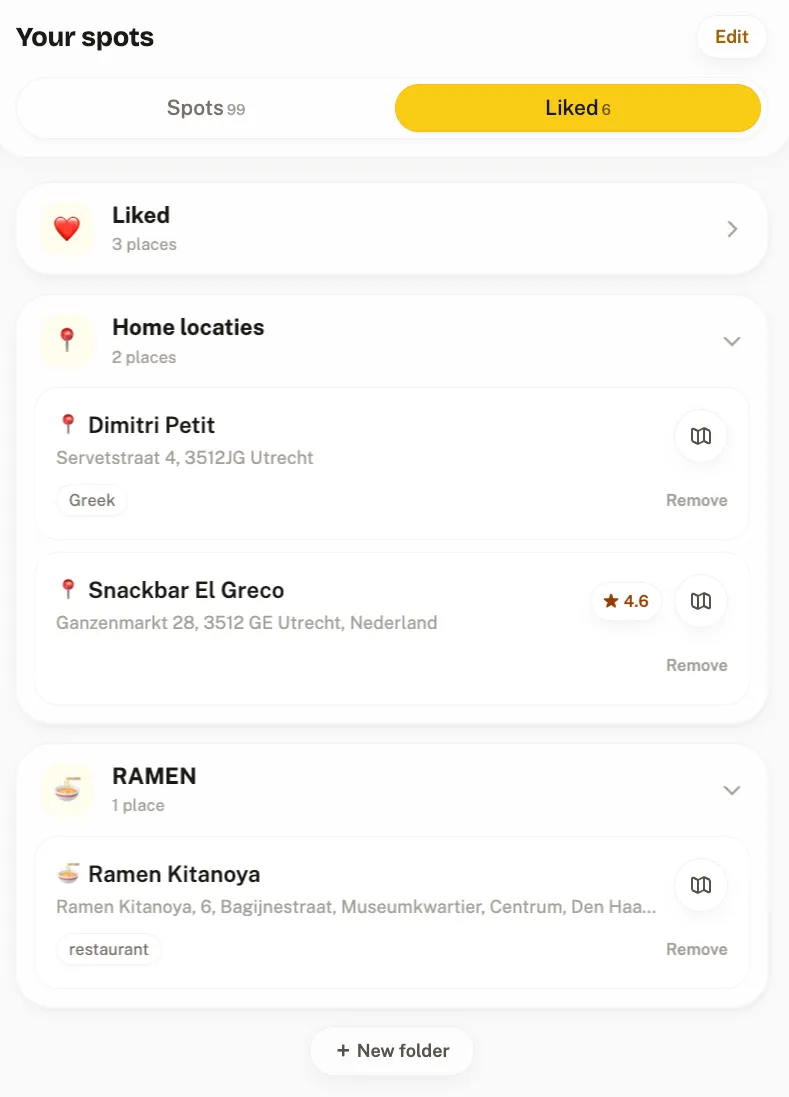
Tap Like N to save the ticked places to Liked, your wishlist, or to a wishlist folder. You can make a folder right there, for example "Tokyo, from vlogs", and keep adding to it from several videos. Nothing is saved until you tap, and Crumble doesn't keep a link back to the video, so add the creator's name to your folder name if you want to remember the source.
When the trip gets close, Explore's Make a trip can use your likes in that city, so the places from three different vlogs end up in one plan. Our guide on how to plan a food trip covers grouping them by neighbourhood and day. If you still need more places, see apps to find restaurants when traveling.
Free scans and what Crumble Plus adds
- Free: 3 video scans a month with a free account. Only scans that find something count: errors, unreadable videos and videos with no places give the try back. The wishlist holds 2,000 places.
- Crumble Plus (free 30-day trial): plenty of scans every day, plus "Look online for the missing spots", which checks the web for up to 8 unmatched names and only lets you save a place when 2 or more websites confirm it is open at a matching address. Plus can't be bought yet; the trial needs no card.
Which vloggers make this easy (and a note for creators)
If you plan trips from YouTube, favour channels whose videos are easy to turn into a list. The signs:
- A place list in the description with name and neighbourhood or address. This is the single biggest help, for you and for any tool.
- Chapters titled with the restaurant name, not "Stop 3" or "The best one".
- Name captions on screen when they walk in. For Shorts, that is what Crumble's AI reads.
- The city in the title. It helps both you and a matcher pick the right branch of a chain.
If you make food videos yourself: write every place in the description, one per line, with the area. Viewers can then save your whole guide in seconds, whatever tool they use.
YouTube, TikTok or Instagram: what differs
The same Find spots screen takes all three, but it reads them differently. On TikTok it reads the caption plus TikTok's auto-subtitles, and the slides of photo posts. On Instagram it reads the caption only. On YouTube, Shorts and short videos get the full watch, long videos the description. The full TikTok and Instagram workflow is in how to save restaurants from TikTok, and the other apps that do this are compared in apps to save restaurants from TikTok.
Privacy
Only the link goes to Crumble. Its server reads the public video; the title, description or video link are passed to an AI provider (Google Gemini, via OpenRouter) to find place names, without your identity. Private videos can't be read.
Frequently asked questions
How do I save restaurants from a YouTube video?
Open the description, pinned comment or chapters and find the place names. Then search each one in a map app and save it to a list, or paste the video link into Crumble's Find spots, which lists the places the video names and lets you save the ones you want to your wishlist in one tap.
Can Crumble find restaurants in a long YouTube vlog?
Only when they are written down. For videos longer than 3 minutes Crumble reads the title and description, not the speech. If the creator lists the places in the description, the scan finds them. If names are only spoken, use the chapters and add the places by hand.
How do I save restaurants from YouTube Shorts to a map?
Copy the Short's link (or share it to Crumble on Android) and run Find spots. For Shorts, Google's Gemini AI watches the video, so names that are spoken or shown as on-screen text are found, as well as names in the title and description. Tick the places and tap Like.
Is saving to Watch later enough?
It is a fine inbox, but it saves the video, not the places. You can't see the restaurants on a map or tell which one is near you without rewatching. Move the names into a map list or a wishlist before the trip, ideally the day you watch the video.
Is it free?
Copying names into a Google Maps list is free. Crumble gives you 3 video scans a month on a free account, and only scans that find places count. Plenty of daily scans and the web lookup for missing places are part of Crumble Plus, which you can only get as a free 30-day trial for now.
Turn your next vlog into a list
Next time a food vlog sells you a city, don't just tap Save. Paste the link into Find spots, keep the places you want, and they wait on your map for the trip.